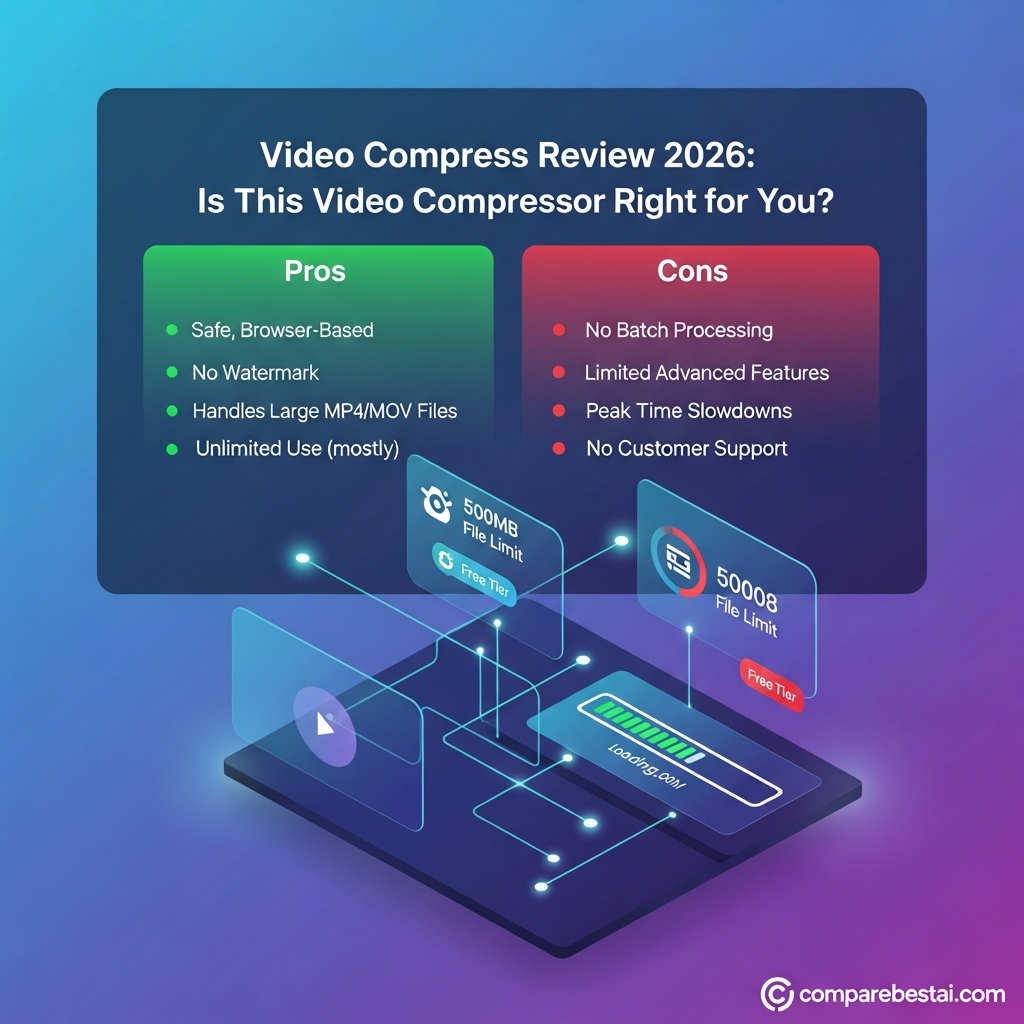

Quick verdict: VideoCompress is worth considering if you want a straightforward video compressor with 1GB free uploads, no watermark, 4K support and adjustable compression settings. Paid plans increase the file limit to 10GB, while its Windows and macOS desktop app adds local processing and batch compression. It is a strong fit for creators, students and everyday business users, although advanced video professionals may prefer a dedicated transcoder with deeper codec and automation controls.
Last checked: September 3, 2026.
VideoCompress Review at a Glance
| Category | VideoCompress |
|---|---|
| Product | Online and desktop video compression toolkit |
| Website | VideoCompress.ai |
| Free plan | Yes |
| Free credits | 30 per month |
| Free file limit | Up to 1GB |
| Paid file limit | Up to 10GB online |
| Watermark | No |
| 4K support | Yes |
| Advanced compression settings | Yes |
| Batch compression | Desktop app |
| Local processing | Desktop app |
| Cloud processing | Web version |
| Windows app | Yes |
| macOS app | Yes |
| Supported formats | 40+ advertised |
| Best for | Creators, students, marketers and routine video compression |
| Main limitation | Credit system and cloud upload workflow on web |
Overall verdict: VideoCompress offers considerably more functionality than a basic free browser compressor. The free tier is generous enough for occasional users, while paid plans and the desktop app make it more practical for recurring workloads.
What Is VideoCompress?
VideoCompress is a browser-based and desktop video-processing platform centered on reducing video file sizes.
Its main online compressor lets users upload a video, choose a target file size or advanced settings, compress the file in the cloud and download the smaller result.
The platform currently advertises:
- 40+ supported video formats
- 1GB free file uploads
- paid uploads up to 10GB
- 4K video support
- H.264 and H.265 encoding
- target-size compression
- advanced compression controls
- no watermark
- Google Drive uploads
- Dropbox uploads
- URL imports
- Windows and macOS desktop applications
VideoCompress has also expanded beyond compression into video cutting, cropping, video-to-MP3 conversion, image and PDF compression, transcription and translation tools.
That makes it more of a small media-processing toolkit than a single-purpose compressor.
Is VideoCompress Actually Free?
Yes, but the current product uses a credit system.
Users on the Free plan currently receive:
- 30 credits each month
- file uploads up to 1GB
- all compression options
- 4K support
- standard processing
- private video processing
- watermark-free output
- secure file deletion
VideoCompress says users receive those monthly free credits after creating an account and signing in.
That is an important correction to older information describing VideoCompress as an unlimited, account-free service.
The current free plan is best suited to occasional compression rather than unlimited high-volume use.
VideoCompress Pricing in 2026
VideoCompress currently offers four monthly plans.
| Plan | Price | Monthly Credits | Maximum Web File Size |
|---|---|---|---|
| Free | $0 | 30 | 1GB |
| Basic | $9/month | 750 | 10GB |
| Pro | $29/month | 5,000 | 10GB |
| Premium | $59/month | 7,500 | 10GB |
All current plans include:
- 4K video support
- all compression options
- private processing
- watermark-free output
- secure file deletion
Basic, Pro and Premium add priority processing.
VideoCompress says compressing a five-minute 1080p video costs approximately one credit as a reference point, although actual credit consumption depends on video duration, codec, resolution, compression settings and target compression ratio.
The exact cost is displayed before a compression job starts.
Are unused credits refundable?
Failed compression jobs are automatically refunded according to VideoCompress.
Subscription refunds are more restrictive.
The current policy says an initial subscription purchase may qualify for a refund when the request is submitted within 24 hours and none of the included credits have been used.
Renewals, late requests and subscriptions where credits have already been consumed are generally excluded.
VideoCompress File Size Limits
The current limits are much higher than the 500MB figure found in older reviews.
Free users
Up to 1GB per video.
Paid web users
Up to 10GB per video.
Desktop application
VideoCompress describes the paid desktop workflow as having no file-size restriction, although practical performance will still depend on the user's hardware and available storage.
This makes the desktop application particularly relevant for long recordings, high-bitrate footage and larger 4K files.

Key VideoCompress Features
Target File Size Compression
The basic workflow lets you specify the approximate output file size you need.
This is useful when a video must fit below an upload or attachment limit.
Instead of manually calculating bitrates, you choose a target size and allow VideoCompress to determine the compression required.
Advanced Compression
The Advanced Compression mode gives users more control over the balance between file size and quality.
VideoCompress documents controls involving:
- bitrate
- resolution
- target size
- compression mode
This is more flexible than the older one-click-only version described in the existing article.
H.264 and H.265 Support
VideoCompress says it uses both H.264 and H.265 video encoding.
H.264 remains widely compatible across browsers, devices and applications.
H.265 can generally provide stronger compression efficiency, particularly for higher-resolution footage, although playback compatibility should still be checked for the destination platform.
More Than 40 Video Formats
VideoCompress currently advertises support for more than 40 formats.
Its upload interface explicitly mentions formats including:
- MP4
- WebM
- MOV
- MKV
- AVI
- WMV
Broader format support is useful for users who work with footage from multiple cameras, phones and editing applications.
4K Video Support
All current pricing tiers list 4K support, including the Free plan.
That does not mean every 4K video will compress without quality reduction.
Compression always involves a tradeoff between bitrate, output size and visual fidelity.
But users do not need a premium plan simply to process a 4K source file.
Google Drive and Dropbox Uploads
VideoCompress lets users import files from Google Drive and Dropbox in addition to uploading from local storage.
The service also supports pasting a video URL.
These options can be useful for creators whose media already lives in cloud storage.
No Watermark
VideoCompress currently lists watermark-free output across all plans, including Free.
That gives it an advantage over some freemium editors where branding remains on unpaid exports.
VideoCompress Desktop App
One of the most important developments missing from the current CompareBestAI article is the VideoCompress desktop application.
The desktop version is available for Windows and macOS.
Supported installers currently include:
- Windows x64
- Windows ARM64
- macOS Apple Silicon
- macOS Intel
The desktop version significantly changes the product's capabilities.
Web vs Desktop: What's the Difference?
| Feature | Web Version | Desktop App |
|---|---|---|
| Processing | Cloud | Local |
| Internet required | Yes | No after installation |
| Multiple files | One at a time | Batch compression |
| File limit | Up to 10GB | No stated paid-plan limit |
| Privacy | Uploaded then deleted | Files stay on device |
| Compression controls | Yes | More detailed controls |
| Offline use | No | Yes |
| Windows/macOS | Browser | Native application |
Batch Compression
The desktop app supports adding several files at once and placing them into an automatic queue.
This is significantly better for:
- agencies
- marketing teams
- educators
- content libraries
- recurring video workflows
The existing article's claim that VideoCompress does not support batch processing is therefore no longer accurate.
Local Processing
Desktop processing is also important for privacy.
VideoCompress states that files processed in the desktop application remain on the user's device and are not uploaded to its servers.
This makes the desktop version more suitable than the web version when upload privacy is important.
Professional Controls
The desktop app lets users adjust parameters including:
- output format
- bitrate
- resolution
- frame rate
This gives advanced users more control than the standard browser workflow.
Is VideoCompress Safe?
The answer depends partly on which version you use.
Web version
The online compressor processes videos in the cloud.
VideoCompress says uploaded data is protected during processing and automatically deleted from its servers within 24 hours after compression.
Because files do leave your device, users handling confidential, regulated or commercially sensitive material should still review VideoCompress's privacy policy and their own organization's security requirements before uploading.
Desktop version
The desktop application processes files locally.
According to VideoCompress, files do not upload to its servers when you use the desktop app.
That makes the desktop option the stronger choice for users who prefer local processing.
VideoCompress should not automatically be described as compliant with specific regulations such as HIPAA, SOC 2 or ISO 27001 unless the vendor publishes evidence supporting those claims.
VideoCompress Privacy Considerations
The current privacy policy also deserves more attention than the old article gives it.
VideoCompress says its website may collect information such as:
- account details
- contact information
- billing information
- IP addresses
- browser information
- cookies
- analytics data
It also describes using third-party services and advertising-related technologies.
That does not mean uploaded videos are publicly exposed, but readers should distinguish between video-file handling and general website/account data collection.
For highly sensitive footage, local desktop processing provides the clearest privacy advantage.
Video Compression Quality
No compressor can promise zero quality loss in every situation.
Reducing file size typically means lowering bitrate, changing codec, reducing resolution or removing data in another way.
VideoCompress is designed to preserve visual clarity while shrinking the file, but the result depends on:
- original bitrate
- original resolution
- target size
- codec
- motion complexity
- video duration
- selected compression settings
For example, forcing a large 4K video into a very small target file will create more visible degradation than applying moderate compression to a 1080p clip.
The safest workflow is:
- Compress the video.
- Preview the result.
- Check fast motion and detailed scenes.
- Listen for audio problems.
- Increase the target size if the quality drop is excessive.
VideoCompress Pros and Cons
Pros
- Free plan available
- 1GB free upload limit
- Up to 10GB on paid web plans
- No watermark
- 4K support
- 40+ advertised video formats
- Basic and advanced compression modes
- H.264 and H.265
- Google Drive and Dropbox imports
- Windows and macOS desktop app
- Batch compression on desktop
- Local desktop processing
- Offline desktop use
- Paid plans for heavier workloads
Cons
- Free use is credit-limited
- Account sign-in is required for monthly free credits
- Web processing requires uploading files
- Batch compression requires the desktop application
- Credit consumption varies with the processing job
- Refund eligibility is restrictive
- Advanced professionals may still want deeper transcoding control
- Public compliance certifications should be verified before sensitive enterprise use

Who Should Use VideoCompress?
Casual users
VideoCompress is a good match for someone who needs to reduce an occasional video before uploading, storing or sending it.
The Free plan should be sufficient for light use.
Content creators
Creators can benefit from 4K input support, target file sizing, broad format compatibility and watermark-free output.
Social media teams
Videos can be compressed before uploading to platforms that benefit from smaller files.
The ability to import media from Drive or Dropbox can also reduce workflow friction.
Teachers and students
VideoCompress can make lecture recordings, presentations and project files easier to upload or share.
Small businesses
The Basic and Pro plans may make sense where video compression happens regularly but a complete professional post-production suite would be unnecessary.
Users with sensitive files
The desktop application is the more appropriate option if avoiding cloud uploads is important.
Who Should Look Elsewhere?
VideoCompress may not be ideal if you need a full nonlinear video editor, highly advanced encoder configuration, extensive automation or a fully documented enterprise compliance stack.
Professional post-production teams may prefer software designed specifically for repeatable transcoding and media management.
Developers who need automated server-side video-processing pipelines may also be better served by an API-focused media platform.
VideoCompress vs HandBrake
HandBrake remains one of the strongest free alternatives.
It is an open-source desktop transcoder available for major desktop operating systems.
HandBrake provides:
- H.264
- H.265
- AV1
- VP8 and VP9
- constant-quality encoding
- average-bitrate encoding
- batch scan and queueing
- subtitles
- cropping and scaling
- video filters
- hardware-accelerated encoding
The tradeoff is usability.
VideoCompress is easier for users who simply want a smaller file without understanding codecs and encoding parameters.
HandBrake is stronger for technical users who want precise, repeatable control.
Choose VideoCompress if:
You want simplicity, browser access, exact target sizing or an easier interface.
Choose HandBrake if:
You want free local processing and detailed encoding control.
VideoCompress vs Wondershare UniConverter
Wondershare UniConverter is a broader paid desktop video toolkit.
Current first-party pricing varies by package and promotion, but Wondershare offers monthly, yearly and perpetual licensing and includes batch high-quality compression, conversion and additional video-processing tools.
UniConverter makes more sense when compression is only one part of a larger editing and conversion workflow.
VideoCompress is simpler and has a usable free tier.
VideoCompress Pricing: Is It Good Value?
For occasional use, the Free plan is attractive.
You receive 30 monthly credits, 1GB file support, 4K processing and watermark-free output.
Basic at $9 per month is the logical first paid tier for recurring users because it increases capacity to 750 credits and allows files up to 10GB.
Pro increases that allowance substantially to 5,000 credits for $29 per month.
Premium provides 7,500 credits for $59 per month.
The best value depends less on raw file count than on actual processing complexity because VideoCompress calculates credit consumption according to the resources required.
For that reason, users with recurring workloads should test several representative videos before choosing a paid plan.
Best VideoCompress Alternatives
HandBrake
Best for users who want free, local and highly configurable video encoding.
Wondershare UniConverter
Best for users who need compression together with conversion, editing and batch media processing.
Kapwing
A better fit when compression is only one part of a collaborative browser-based content-creation workflow.
Wave.video
More appropriate for marketing teams needing video creation, hosting and social-focused workflows in addition to optimization.
Mux
Better suited to developers who need programmable video infrastructure, encoding, storage and delivery rather than manual compression.
How We Evaluated VideoCompress
This review was updated using current first-party documentation from VideoCompress.ai.
We reviewed:
- the online video compressor
- current upload limits
- supported formats
- pricing tiers
- credit allowances
- 4K availability
- compression settings
- file-deletion policy
- cloud processing
- desktop-app capabilities
- batch compression
- local processing
- refund rules
We distinguish between capabilities documented for the online application and those available only through the desktop application.
We also avoid treating vendor marketing claims about compression quality or performance as independent benchmark results.
Pricing and product features were checked on September 3, 2026 and may change.
Frequently Asked Questions
Is VideoCompress free?
Yes. VideoCompress currently offers a Free plan with 30 credits per month, support for files up to 1GB, 4K video processing and no watermark. Users need to sign in to receive the monthly free credits.
What is the VideoCompress file-size limit?
Free users can currently process files up to 1GB. Paid web plans increase that limit to 10GB. The desktop application describes no file-size restriction for paid local processing, although hardware and storage still affect practical limits.
Does VideoCompress add a watermark?
No. Current VideoCompress pricing lists watermark-free output across Free, Basic, Pro and Premium plans.
Does VideoCompress support 4K video?
Yes. 4K support is currently listed on all VideoCompress plans, including Free.
Can VideoCompress compress multiple videos at once?
Yes, through the desktop application. The browser workflow handles one file at a time, while the desktop app supports batch compression and automatic queueing.
Is VideoCompress safe for private videos?
The web version processes files in the cloud and says uploaded videos are deleted within 24 hours. The desktop application processes files locally without uploading them. For confidential or regulated content, verify your organization's requirements before using any third-party service.
Does VideoCompress require an account?
VideoCompress currently says users receive the Free plan's 30 monthly credits after signing up and logging in.
Does VideoCompress have a desktop app?
Yes. VideoCompress provides a desktop application for Windows and macOS. It supports offline processing, batch compression, local file handling and more detailed compression controls.
What codecs does VideoCompress use?
VideoCompress says its video compressor uses H.264 and H.265. H.264 offers broad compatibility, while H.265 can provide greater compression efficiency for higher-resolution footage.
Is VideoCompress better than HandBrake?
VideoCompress is easier for users who want a simple interface and target-size compression. HandBrake offers deeper codec and encoding controls and is completely local and open source. The better choice depends on whether simplicity or technical control matters more.
Final Verdict: Is VideoCompress Worth It?
VideoCompress is worth considering for users who want an easier alternative to technical video-transcoding software.
Its strongest features in 2026 are:
- 1GB free uploads
- paid uploads up to 10GB
- 4K support
- no watermark
- broad format support
- target-size and advanced compression
- cloud-storage imports
- Windows and macOS applications
- local desktop processing
- batch compression
The biggest change from older versions is that VideoCompress is no longer just a lightweight free web compressor.
It now uses monthly credits, offers three paid tiers and provides a significantly more capable desktop application.
For occasional compression, start with the Free plan.
For regular browser-based processing of larger files, Basic or Pro is more practical.
For privacy-sensitive or batch workflows, use the desktop app.
If you need more advanced codec control without paying, compare VideoCompress with HandBrake before deciding.
For broader editing, collaboration or media-production workflows, compare it with full video platforms rather than standalone compressors.
Found this guide useful? Share it with your team.