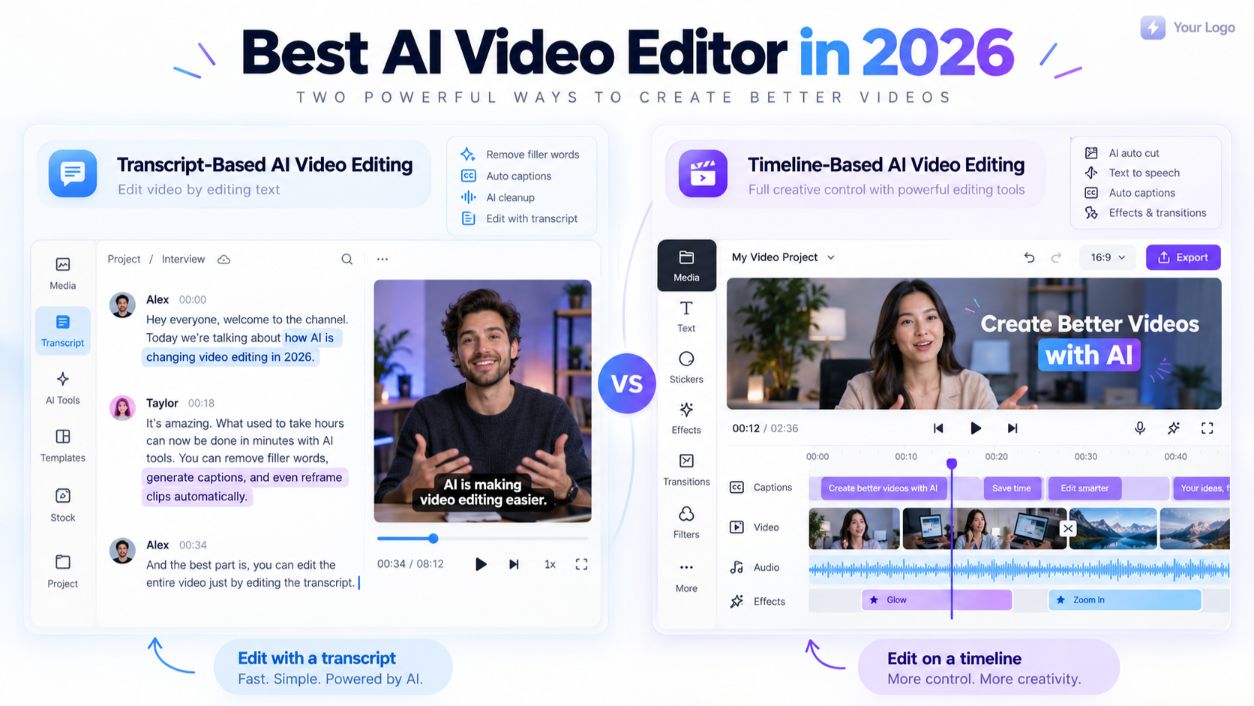

The best AI video editor in 2026 depends on what you edit. Descript is best for talking-head videos and podcasts because you edit video by editing the transcript. CapCut is best for short social videos and offers a strong free plan. VEED is best for quick browser-based editing with subtitles, and OpusClip is best for turning long videos into short clips. Paid plans start at about $15 to $25 a month.
Choose Descript for interviews, courses, and podcasts. Choose CapCut for TikTok, Reels, and YouTube Shorts. Choose VEED for fast online edits with captions and translation. Choose OpusClip to repurpose long videos into shorts automatically.
What Is an AI Video Editor?
An AI video editor is software that uses artificial intelligence to handle time-consuming editing tasks for you. Common AI features include automatic captions, filler word and silence removal, background removal, audio cleanup, auto-reframing for vertical video, and clipping highlights from long recordings. You still make the creative decisions, but the AI does much of the repetitive work.
In this guide, you'll learn:
- Which AI video editing tools fit different jobs and budgets
- What each tool costs in 2026, including free plan limits
- What AI can and can't edit on its own
- A step-by-step process to turn raw footage into a finished video
- Whether AI editing beats hiring a human editor for your business
AI Video Editors Compared at a Glance (2026 Pricing)
OpusClip has the cheapest paid entry at $15 a month, and CapCut offers the most generous free editor. Prices below are US monthly list prices cross-checked against recent 2026 pricing trackers, because several vendors' pricing pages block automated checks. Confirm on each vendor's site before you buy.
Tool | Best for | Free plan | Entry paid plan | Yearly price | Standout AI feature |
|---|---|---|---|---|---|
Descript | Podcasts, interviews, courses | 1 media hour/mo | Hobbyist: $24/mo | $16/mo | Edit video by editing the transcript |
CapCut | Short social videos | Yes, watermarked, up to 1080p | Pro: $19.99/mo | $179.99/yr (about $15/mo) | Auto captions and templates |
VEED | Browser editing with subtitles | Yes, 720p with watermark | Creator: $25/mo | $147/yr | Auto subtitles and translation |
Kapwing | Team collaboration | Yes, 250MB uploads | Pro: $24/member/mo | $16/member/mo | Smart cutting and subtitles |
OpusClip | Long video to short clips | 60 credits/mo, watermark | Starter: $15/mo | Pro: $14.50/mo | AI clipping and auto reframe |
Most of these tools now use AI credits for premium features. Descript Hobbyist includes 400 AI credits a month, CapCut Pro includes 1,200, and VEED Creator includes 500. On some tools, including Kapwing and OpusClip, AI processing stops when credits run out until your plan renews or you buy more.
The Best AI Video Editors, Reviewed
Each AI video editing tool below is built for a different kind of video. Start with the "best for" line and skip the ones that don't fit your content.
1. Descript: Best AI Video Editor for Talking-Head Content
Descript turns your video into a text transcript, so cutting a sentence from the text cuts it from the video. It also removes filler words like "um" and "uh" in one click and cleans up audio with Studio Sound. Its AI co-editor, Underlord, can handle tasks like rough cuts and clip creation. Hobbyist costs $24 a month ($16 yearly) with 10 media hours, and Creator costs $35 ($24 yearly) with 30 hours.
- Pros: Fastest way to edit interviews and podcasts, no timeline skills needed, strong audio cleanup
- Cons: Less suited to fast-paced, effects-heavy social edits; AI credits cap heavy use
Read our full Descript review for a closer look at the workflow.
2. CapCut: Best AI Video Editor for Social Media
CapCut is built for TikTok, Instagram Reels, and YouTube Shorts. It offers auto captions, trending templates, background removal, and effects. The free plan exports up to 1080p with a watermark. Pro costs $19.99 a month ($179.99 a year) and adds 4K export without a watermark, 1TB of cloud storage, and 1,200 AI credits a month.
- Pros: Great templates and effects, strong free plan, desktop, web, and mobile apps
- Cons: Cancellation and auto-renewal complaints are common in user reviews, so set a renewal reminder
See whether the upgrade pays off in our guide: Is CapCut worth it?
3. VEED: Best Online AI Video Editor With Subtitles
VEED runs entirely in your browser, so there's nothing to install. It's known for automatic subtitles, translation, and simple editing for marketing and training videos. Creator costs $25 a month per user, with watermark removal and auto subtitles included. Free exports are limited to 720p with a VEED watermark.
- Pros: No downloads, fast subtitles and translations, easy for beginners
- Cons: Per-seat pricing adds up for teams; free plan is mainly for testing
4. Kapwing: Best for Team Collaboration
Kapwing is a browser-based editor with shared workspaces, so teams can edit and review together. Pro costs $24 per member per month ($16 billed yearly). The free plan limits uploads to 250MB and deletes projects after three days.
- Pros: Real-time collaboration, simple interface, helpful AI tools for subtitles and trimming
- Cons: AI features freeze when credits run out; no free trial of paid plans
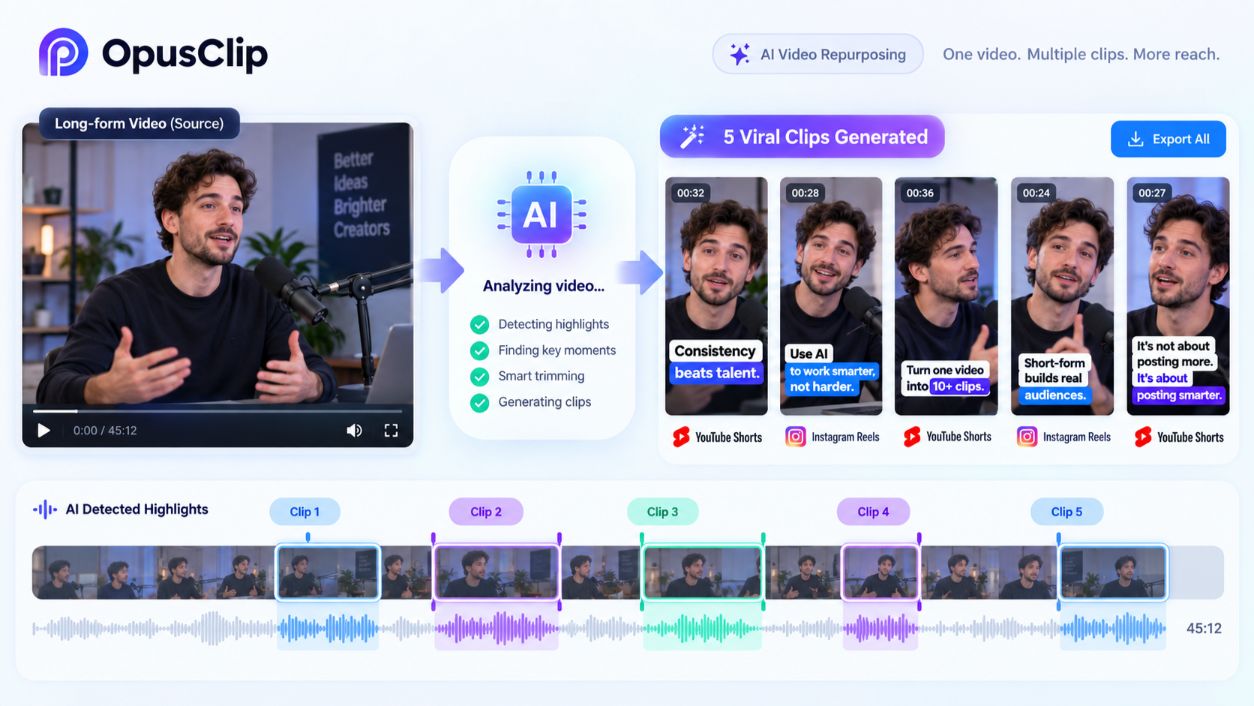
5. OpusClip: Best for Turning Long Videos Into Shorts
OpusClip takes a long video, such as a podcast or webinar, and automatically finds the best moments, adds captions, and reframes them for vertical formats. Starter costs $15 a month for 150 credits, and one credit equals one minute of source video. Pro costs $29 a month or $14.50 a month billed yearly.
- Pros: Huge time saver for repurposing content, low cost per source minute
- Cons: Free plan doesn't allow editing, and monthly credits expire after 60 days
What About Adobe Premiere Pro?
Professional editors who need full creative control often stick with Adobe Premiere Pro, which now includes its own AI features. It has a steeper learning curve than the tools above. See our Adobe Premiere Pro review for details.
Can AI Really Edit Videos Automatically?
AI can handle many repetitive editing tasks automatically, but it can't fully replace human judgment yet. It's excellent at the mechanical work and weaker at storytelling, pacing, and brand style.
Task | How well AI handles it |
|---|---|
Captions and subtitles | Very well; usually needs only light proofreading |
Filler word and silence removal | Very well for talking-head videos |
Audio cleanup | Well; removes background noise and evens out levels |
Auto reframing for vertical video | Well; tracks the speaker in most shots |
Picking highlight clips | Good starting point; still needs human review |
Color correction | Basic fixes only; strong looks still need manual work |
Story structure and pacing | Weak; this is where human editors add the most value |
How AI Video Editors Handle Color Correction and Sound Design
Most AI editors offer one-click color and lighting fixes that correct exposure and white balance. Sound tools like Descript's Studio Sound clean up voice recordings so they sound closer to a studio mic. For creative color grading or layered sound design, you'll still want manual control or a professional editor.
Do AI Edits Need to Be Disclosed on YouTube?
Usually not for basic editing. According to YouTube's guidance on disclosing AI content, minor edits such as color adjustment, lighting filters, and caption creation don't require disclosure. You do need to disclose realistic AI-generated or meaningfully altered content, such as making a real person appear to say something they didn't.
Do You Need Video Editing Skills to Use AI Tools?
No. Tools like Descript, VEED, and OpusClip are designed for people with no editing background. Basic skills still help: knowing how to structure a video, when to cut, and how to keep viewers watching will make your AI edits much better. Our beginner's guide to AI video creation is a good place to start.
Step by Step: Turning Raw Footage Into a Polished Video With AI
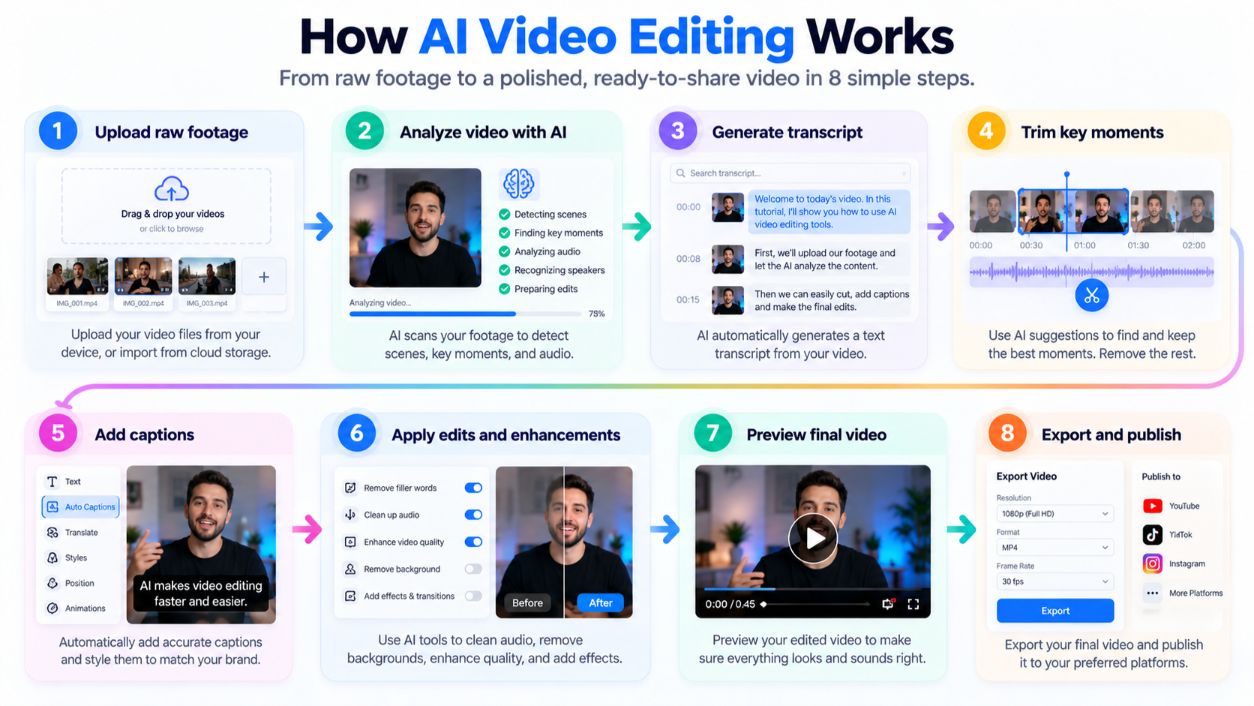
Here's a simple workflow that works in most AI video editors, whether you're making a YouTube video, a product demo, or a training clip.
- Upload your raw footage. Import the full recording into your editor.
- Generate a transcript and captions. Let the AI transcribe the audio, then fix any misheard names or terms.
- Remove filler words and silences. Use the one-click cleanup, then watch the result to make sure no important pauses were cut.
- Make the story cuts yourself. Delete off-topic sections and tighten the opening so the main point lands in the first few seconds.
- Clean up the audio. Apply noise removal or voice enhancement.
- Add visuals. Insert B-roll, on-screen text, and your brand colors.
- Reframe for each platform. Create vertical versions for TikTok, Reels, and Shorts, and a horizontal version for YouTube.
- Review and export. Watch the full video once before publishing.
How to Prompt AI Video Editors for Better Results
AI co-editors respond best to specific instructions. Instead of "make this better," try "cut this to 60 seconds, keep the product demo, and add captions in bold white text." Name the length, the audience, the platform, and the parts that must stay.
Common Mistakes When Using AI Video Editors
- Trusting captions without proofreading. Brand names and technical terms are often wrong.
- Over-cutting pauses. Removing every silence can make speech sound rushed and robotic.
- Skipping the story edit. AI can tighten a video, but it can't decide what your viewer cares about most.
- Burning AI credits on drafts. Test settings on a short clip before processing a full hour of footage.
- Ignoring disclosure rules. If you use AI to make sponsored or UGC-style content, US rules still apply. The FTC's guide, Disclosures 101 for Social Media Influencers, explains how to disclose brand relationships clearly.
How Long Does It Take AI to Edit a Video?
AI processing for captions, transcripts, or clip detection usually finishes in minutes, depending on video length. The total time saved comes from skipping manual tasks like captioning and trimming, while your creative review still takes the same careful attention.
 How Much Does AI Video Editing Cost?
AI video editing costs $0 on free plans and about $15 to $35 a month for most individual paid plans. Team and business plans run from about $50 to $79 per user each month.
- Free ($0): CapCut, VEED, Kapwing, Descript, and OpusClip, all with watermarks, low resolution, or usage caps
- Individual ($15 to $35/month): OpusClip Starter, CapCut Pro, Descript Hobbyist or Creator, VEED Creator, Kapwing Pro
- Business ($45 to $79/month per user): VEED Pro and Studio, Descript Business, Kapwing Business, CapCut Ultra
Free AI Video Editing Tools: What Actually Works?
CapCut's free plan is the most usable for social content, with exports up to 1080p (watermarked). Descript's free plan gives you 1 media hour a month, which is enough to test transcript editing. OpusClip's free plan lets you try AI clipping, but it adds a watermark and doesn't allow editing.
AI Video Editing vs Hiring a Human Editor
AI tools win on cost and speed for routine edits. Human editors win on storytelling, brand style, and complex projects.
Factor | AI video editor | Human editor |
|---|---|---|
Cost | Flat monthly subscription | Per video, per hour, or retainer |
Turnaround | Minutes to hours | Usually days |
Best for | Captions, cleanup, clips, high volume | Story, pacing, brand campaigns |
Creative judgment | Limited | Strong |
A practical example: if you'd pay a freelance editor $150 per video for four videos a month, that's $600. A $24 Descript plan plus a few hours of your own time could handle simple versions of those videos. A common setup is to use both: AI for weekly content, and a human editor for flagship videos.
Is AI Video Editing Worth It for Small Businesses?
Yes, if you publish video regularly. Small businesses that post weekly social clips, product demos, or customer tips get the most value, because AI cuts the repetitive work that makes video feel expensive. If you only make one or two videos a year, a free plan or a one-time freelancer is usually enough.
AI Video Editor FAQs
What is the best AI video editor for beginners?
VEED and Descript are the easiest for beginners. VEED runs in your browser with simple controls, and Descript lets you edit video by editing text, so you don't need timeline skills.
What is the best free AI video editor?
CapCut has the most capable free AI video editor for social content, with auto captions and exports up to 1080p, though free exports carry a watermark.
Can AI generate professional-quality videos?
AI can produce professional-looking captions, audio, and clips. A truly professional result still depends on good footage and human decisions about story and pacing.
What is the best AI video editor for YouTube creators?
Descript is best for long-form YouTube videos, and OpusClip is best for turning those videos into Shorts. The two work well together.
Which AI video editor is best for e-commerce ads?
CapCut is a strong choice for product ads because of its templates and effects. VEED works well when you need subtitles and translations for multiple markets.
Can AI help with UGC-style videos?
Yes. AI editors can add captions, cut footage, and format UGC clips for each platform. If the content is sponsored, follow FTC disclosure rules.
What should I charge for AI-edited video work?
Price by the value and outcome of the video, not by how long the AI took. Include your tool subscriptions, your review time, and revisions in your rate.
Key Takeaways
- Best for talking-head and podcast videos: Descript, from $24 a month ($16 yearly)
- Best for social media: CapCut, with a strong free plan and Pro at $19.99 a month
- Best online editor with subtitles: VEED, from $25 a month
- Best for teams: Kapwing, from $24 per member a month
- Best for repurposing long videos: OpusClip, from $15 a month
- AI handles well: Captions, filler word removal, audio cleanup, reframing
- AI still struggles with: Story structure, pacing, and creative color grading
Final Verdict: Choose the AI Video Editor That Fits Your Content
There's no single best AI video editor for everyone. Pick Descript if you edit people talking, CapCut if you make short social videos, VEED if you want fast browser editing with subtitles, and OpusClip if you repurpose long content. Start on a free plan, run one real project through it, and upgrade only when the tool clearly saves you time.
At CompareBestAI, we compare AI video tools side by side on pricing, features, and real use cases, so you can choose with confidence. Ready to decide? Use the CompareBestAI comparison tool to put Descript, CapCut, VEED, and other AI video editors head to head.